
Blog #5 of my 30 day blog challenge: How to install a WordPress SEO plugin
People have a love-hate relationship with WordPress websites. You’ll find people that love WordPress because it’s so easy to use and you can customize it any way you want with templates. On the other hand, you’ll find other people who hate WordPress. They say it gets hacked often and is an easy target for hackers.
Taking everything into consideration, my personal opinion is that WordPress is a very good platform for websites – and it’s also super easy to optimize a for Search Engine Optimization (SEO). WordPress makes it very easy to update your website for SEO using plugins. The top 2 SEO plug-in are WordPress SEO by Yoast and All-in-One SEO Pack by Michael Torbert.
So without further ado, here is a super simple guide to adding an SEO Plugin to WordPress:
Let’s get started!
Step 1
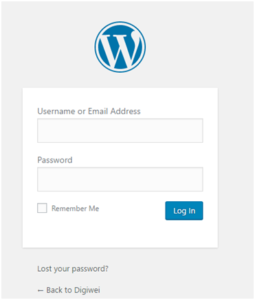
Log in to your WordPress backend – You should see the below login box unless you have a custom site.
Step 2
Once you log into your WordPress. Go to the left column and select Plugins

Step 3
Then on the next screen select “Add New”

Step 4
Then got the Search Plugins box and Search for “Yoast SEO or WordPress SEO”

Step 5
You want to go to the Plugin – Yoast SEO or whatever SEO plugin you will use and select install.

Step 6
Once the plugin finishes installing, press Activate.
Step 7
You’ll see the Yoast SEO plugin on the left menu bar and the top menu bar.
Below is the Left Menu

Below is the Top Menu Bar

That is the basics on how to Install a WordPress plugin. In the next blog post, I will go into how to set up WordPress SEO by Yoast.
If you have any questions, please don’t hesitate to reach out and let us know! >> contact us here